> From the [Strife developer docs](https://strife.app/docs/tutorials/create-a-dynamic-employee-list-using-the-chapters-field). Every page is listed in [llms.txt](https://strife.app/docs/llms.txt).
# Create a dynamic employee list using the Chapters field
This tutorial provides step-by-step instructions for implementing the Chapters field using .NET and enabling the live preview.
In this tutorial, you will learn how to implement a dynamic employee list in Strife Studio. The example leverages the Chapters field and .NET (C#).
> [!WARNING]
> Ensure that the C# SDK is installed on your website. For detailed instructions, refer to [this how-to guide](https://strife.app/docs/how-to-guides/installing-c-sdk.md).
> [!NOTE]
> Please review the [Chapters field reference](https://strife.app/docs/reference/fields/chapters.md) and check the [Strife Web Components guide](https://strife.app/docs/reference/live-preview/web-components.md).
### Template
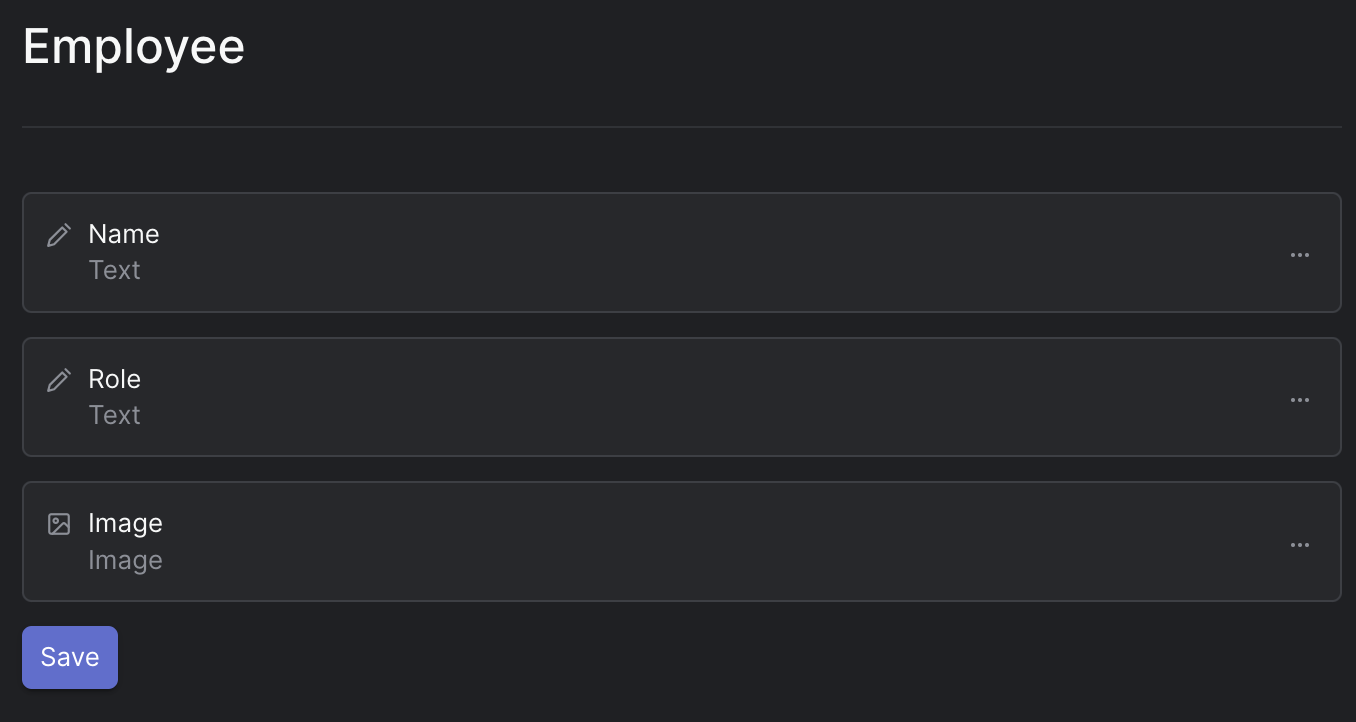
First, create a content template called 'Employee'. Add a couple of fields for displaying information about the employee; such as 'Name', 'Role', 'Image'.
Employee Content Template
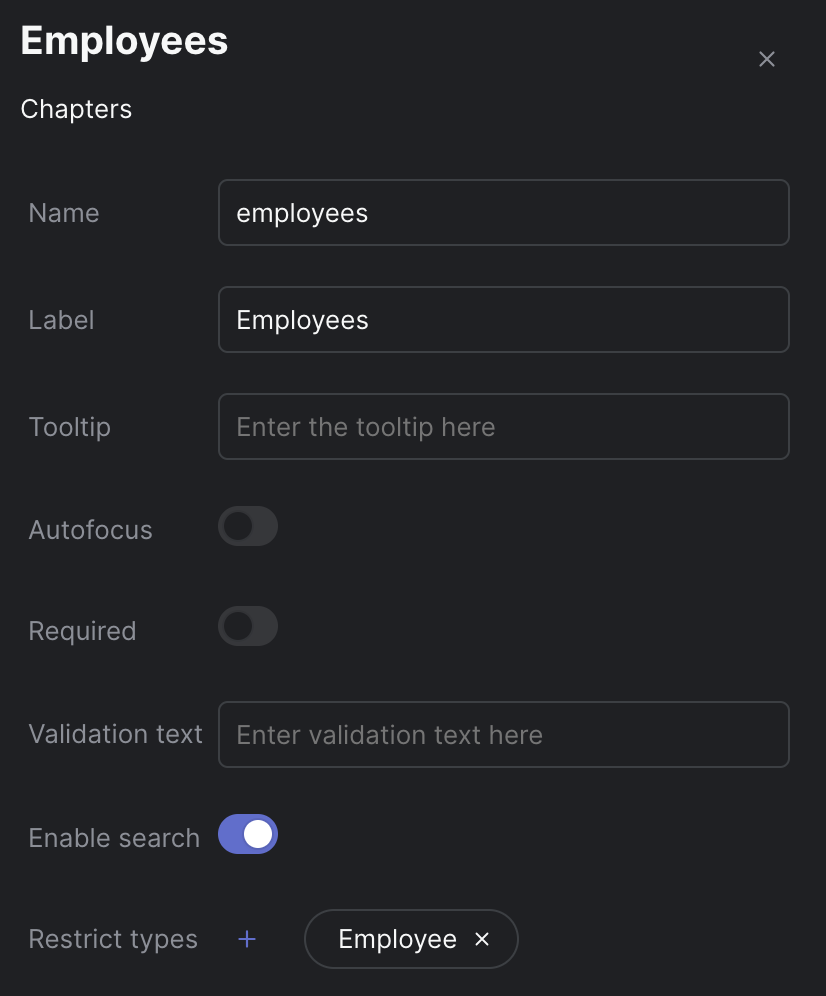
Next, create a chapters field on your document template used by the page where you want to display employees. Open settings, name the field accordingly, e.g. 'employees', and restrict types to use only the 'Employee' Content Template.
Chapters settings
### Website
#### Backend
Create a model in your website that will hold the data.
```csharp
public class Employee {
public string Name {get;set;}
public string Role {get;set;}
public Image Picture {get;set;}
...
}
```
Add a list property to your existing page model
```csharp
public class YourPageModel : Content {
...
public List Employees {get;set;} = new List();
...
}
```
Your page model will now be populated with the employees added in the Strife Studio.
#### Frontend
Create a partial view called `_Employee.cshtml` in the _Shared_ folder.
```cshtml
@model Employee
@Model?.Name
@Model?.Role
```
Determine the location within your markup where you want to present the employee list. Utilize a container Strife Web Component and include the `is` and `data-field` attributes. Then, iterate through the employee data in your page model and employ the partial to perform server-side rendering of the content.
```cshtml
@foreach (var employee in Model.Employees)
{
}
```
To ensure the live preview functions correctly, it's essential to include an HTML template that contains the markup to be dynamically cloned when the user edits content in Strife Studio.
Begin by obtaining the ID for your content template, which can be found in the Content Template list. Click on the three dots and select 'Copy ID'. Next, navigate to your `_Layout.cshtml` file, and just before the closing `
` tag, add the following code snippet as shown below:
```cshtml