> From the [Strife user guide](https://strife.app/docs/user-guide/getting-started/find-your-way-around). Every page is listed in [llms.txt](https://strife.app/docs/llms.txt).
# Find your way around Studio
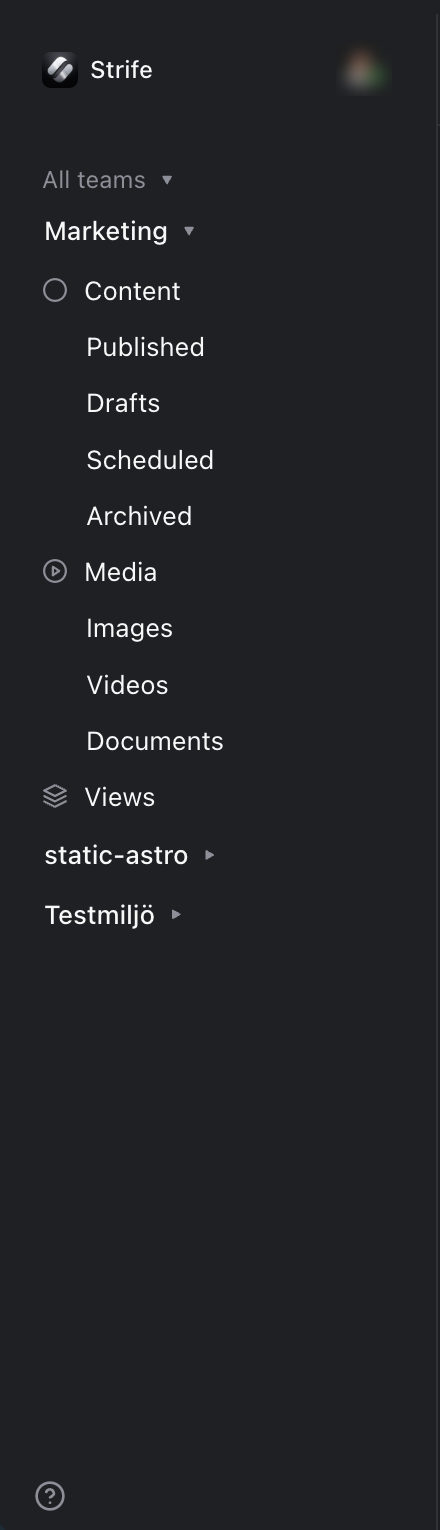
A tour of Studio's left navigation: the workspace menu, your account menu, the inbox, your teams with their content, media and views, and the help menu.
The navigation on the left takes you everywhere in Studio: to your teams' content and media, to your inbox, and to your settings.
The navigation
### The workspace menu
At the top is your workspace's name. Click it to switch to another workspace you belong to (see [Navigating to a specific workspace](https://strife.app/docs/user-guide/getting-started/setting-up-a-workspace/navigating-to-a-specific-workspace.md)). Administrators also find **Workspace settings** and **Manage members** here. **Log out** (Option+Shift+Q) signs you out.
### Your account menu
Your picture opens your account menu, with **Changelog** for what's new in Strife, **Join Slack community** and **Log out**. Administrators also have **View profile** and **Settings**.
### Inbox
**Inbox** shows your notifications, with the number you haven't read. It is only there when your team has it turned on.
### Your teams
Under **All teams** are the teams you are a member of. Click a team to open it:
* **Content**: all the team's pages, with the lists **Published**, **Drafts**, **Scheduled** and **Archived** under it. See [Content list](https://strife.app/docs/user-guide/getting-the-basics/content-list.md).
* **Media**: the team's media library, with **Images**, **Videos** and **Documents** under it. See [Media library](https://strife.app/docs/user-guide/media-repository.md).
* **Views**: your saved views. See [Saving a view](https://strife.app/docs/user-guide/content-list-and-filter/saving-a-view.md).
### Help
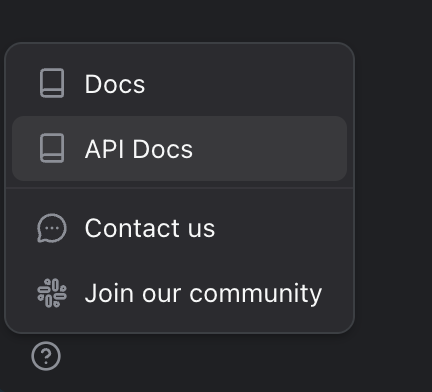
The question mark at the bottom of the navigation opens **Docs** (this guide), **API Docs** (the documentation for developers), **Contact us** and **Join our community**.
The help menu
### Make room
To hide the navigation, click the panel button at the start of the content list's top row, or choose **Collapse navigation bar** in the command menu. **Expand navigation bar** brings it back.
Most of what you can click in Studio can also be reached from the keyboard: press **Command+K** (Ctrl+K on Windows) to open the [command menu](https://strife.app/docs/user-guide/command-menu.md).