> From the [Strife user guide](https://strife.app/docs/user-guide/getting-the-basics/content-list). Every page is listed in [llms.txt](https://strife.app/docs/llms.txt).
# Content list
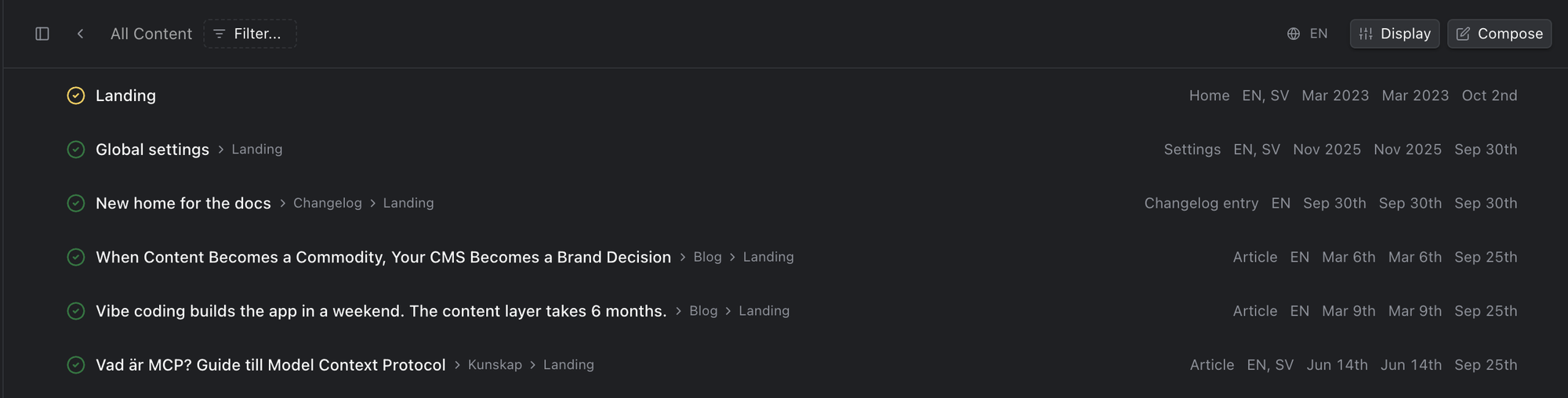
The content list: the team's lists of pages, how to open a page, and the page menu with Edit, Preview, Compose, Set origin, Copy and Archive.
Every team has a content list with all its pages and other documents. Open it by choosing the team in the left sidebar and then **Content**. Below **Content** are the lists of **Published**, **Drafts**, **Scheduled** and **Archived** pages.
At the top of a list are **Filter...**, a language selector on a team with more than one language, **Display** for sorting and columns, and **Compose** for creating a page. See [Filter](https://strife.app/docs/user-guide/content-list-and-filter/filter.md), [Search, sort and display](https://strife.app/docs/user-guide/content-list-and-filter/sorting-list.md) and [Compose a page](https://strife.app/docs/user-guide/getting-the-basics/compose-a-new-document.md).
The content list
Each row shows the page's name, and after it the pages it sits under. On the right are the columns you choose under **Display**, such as the type, the languages and dates. Click the name to open the page in the editing view. The name of an archived page, or of a document without an address, is plain text: use **Edit** in its menu instead.
The icon in front of each name shows the page's status: a green check means published, a yellow check means published with changes that aren't published yet, an empty circle means never published, and a circle with a cross means archived.
### The page menu
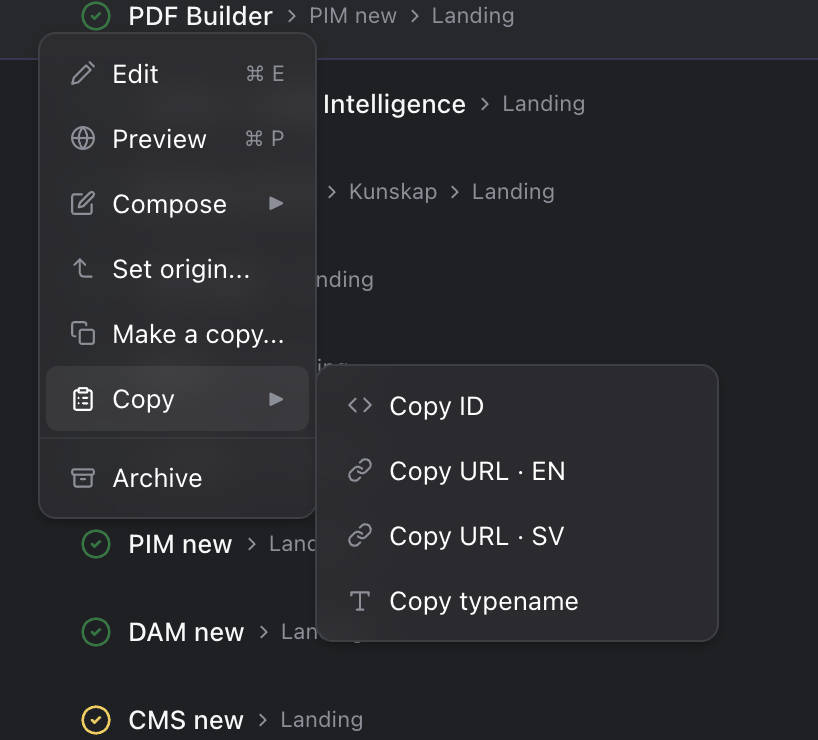
The **…** at the start of each row opens the page's menu:
* **Edit** (Command+E): edit the page's fields in a panel over the list, without the preview.
* **Preview** (Command+P): open the page in the editing view, like clicking its name. Only for pages with an address.
* **Compose** ▸: create a new page under this one.
* **Set origin...**: move the page under another page. See [Move a page](https://strife.app/docs/user-guide/content-list-and-filter/changing-origin.md).
* **Make a copy...**: create a copy of the page.
* **Copy** ▸: copy the page's id, its address (one per language) or its type name, for example to give to a developer.
* **Archive**: take the page off the website and lock it. An archived page has **Restore** and **Delete** instead. See [Lifecycle of a page](https://strife.app/docs/user-guide/working-with-content/lifecycle-of-a-page.md).
The page menu, with Copy open
With a row selected, **Command+E** and **Command+P** work without the menu, the **Copy** actions are in the [command menu](https://strife.app/docs/user-guide/command-menu.md) too, and the arrow keys move through the list. On Windows, use Ctrl instead of Command.