> From the [Strife user guide](https://strife.app/docs/user-guide/media-repository/copy-a-media-file). Every page is listed in [llms.txt](https://strife.app/docs/llms.txt).
# Work with a media file
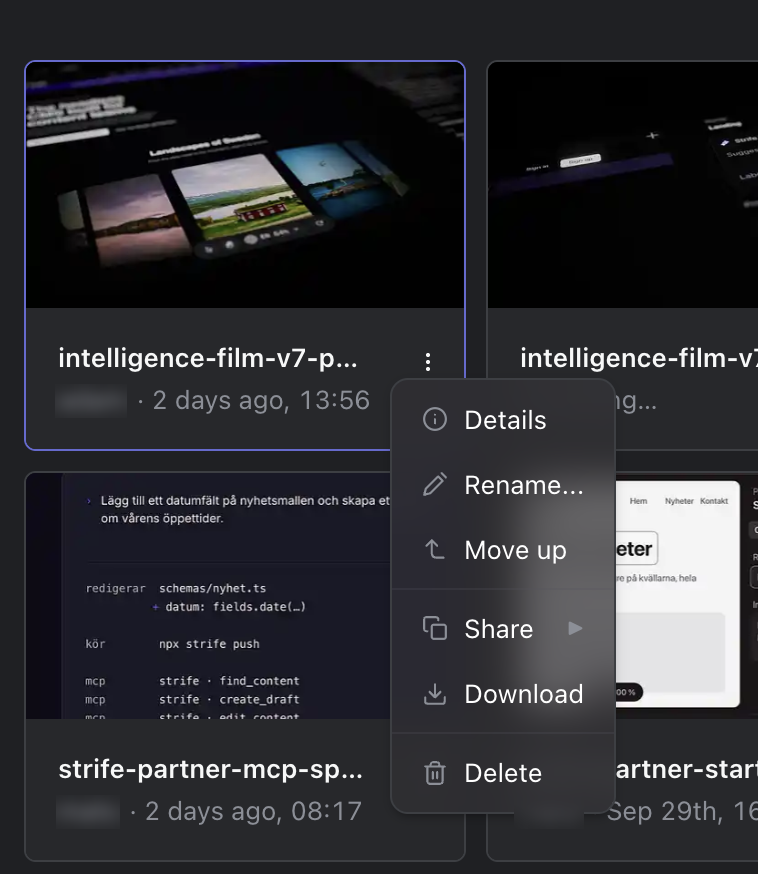
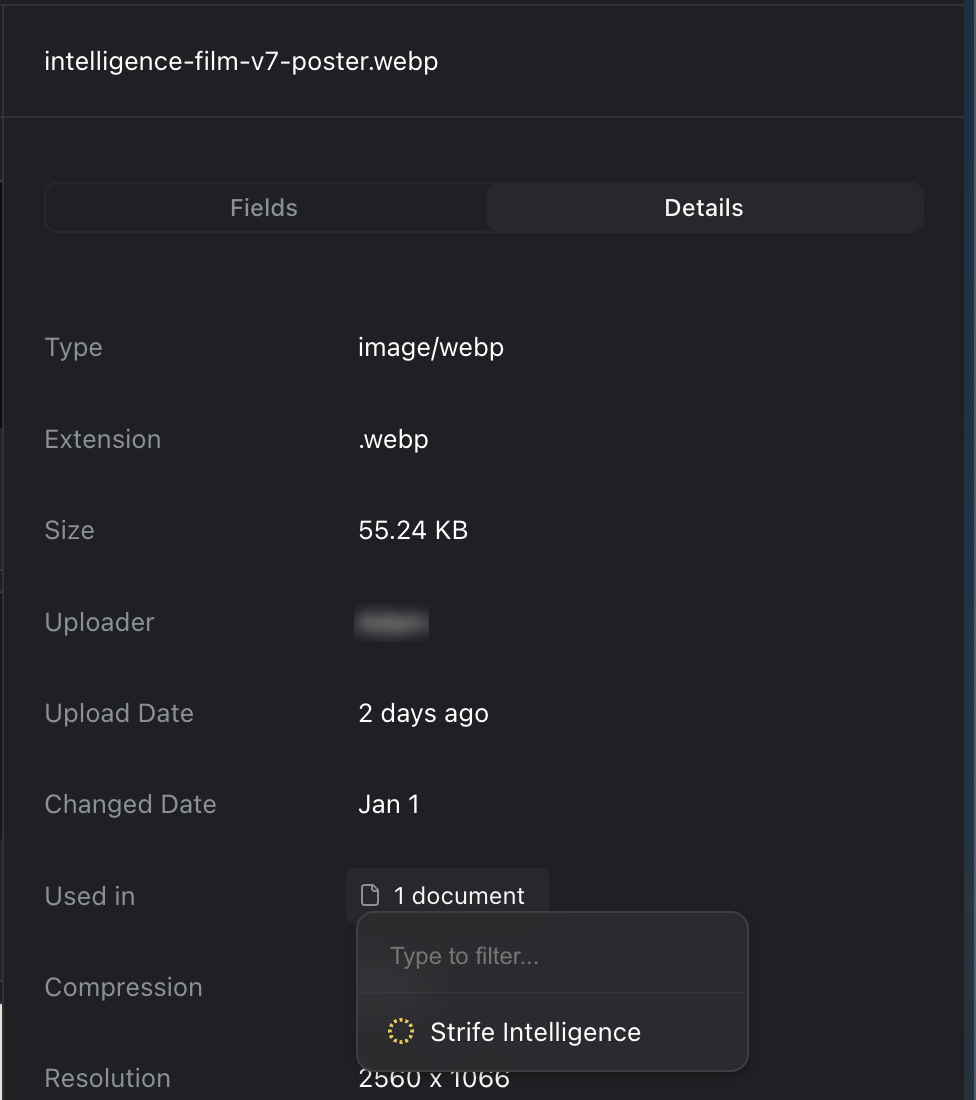
A media file's menu: its details and where it is used, renaming and moving it, copying its link and downloading it.
Open a file's menu with **⋮** on the file:
* **Details** shows the file's fields, such as its caption and keywords, and its details: type, size, who uploaded it and when, and **Used in**, the documents that use it.
* **Rename...** gives the file a new name.
* **Move up** moves the file out of its folder, one level up. To move a file into a folder, drag it onto the folder.
* **Open containing folder**, in search results, opens the folder the file is in.
* **Share** ▸ **Copy link** copies a link to the file. You will see "Url is copied to clipboard."
* **Download** downloads the file.
* **Delete** removes the file (see [Delete a media file](https://strife.app/docs/user-guide/media-repository/deleting-a-media-file.md)).