> From the [Strife user guide](https://strife.app/docs/user-guide/working-with-content/languages-and-translation). Every page is listed in [llms.txt](https://strife.app/docs/llms.txt).
# Languages and translation
Work in several languages: the team's languages, switching language while you edit, adding a language to a page by hand or with Strife Intelligence, shared fields, and publishing one language at a time.
A team can have its content in several languages. An administrator chooses the team's languages, and which one is the default, in the team's settings under **Localization**.
Each page has a version in some or all of them. Which ones is set under **Locales** in the page's properties (see [Editor panel](https://strife.app/docs/user-guide/getting-the-basics/editor-panel.md)). The default language can't be turned off.
### Switch language
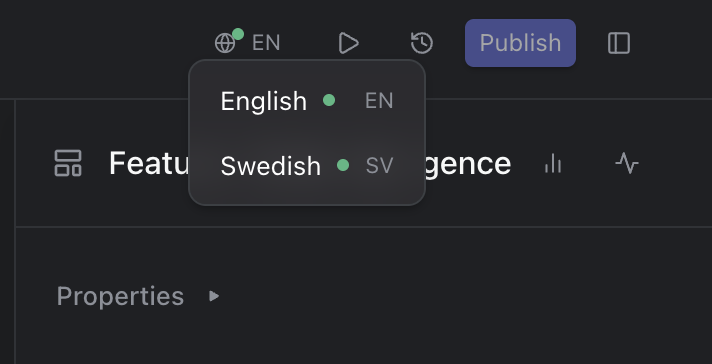
On a team with more than one language, the bar along the top of the editing view has a language button: a globe and the code of the language you are editing, such as **EN**. Click it and choose another language, and the fields and the preview switch to it.
In the menu, a dot after a language shows its state:
* **Green**: published, with no changes since.
* **Yellow**: changes that aren't published yet.
* **Red**: removed from the page, but still published.
Languages that the page doesn't have yet are greyed out. The dot on the globe itself sums up the page: green when everything is published, yellow when there are unpublished changes, and red when a language version will be deleted when you publish.
The language menu
### Add a language to a page
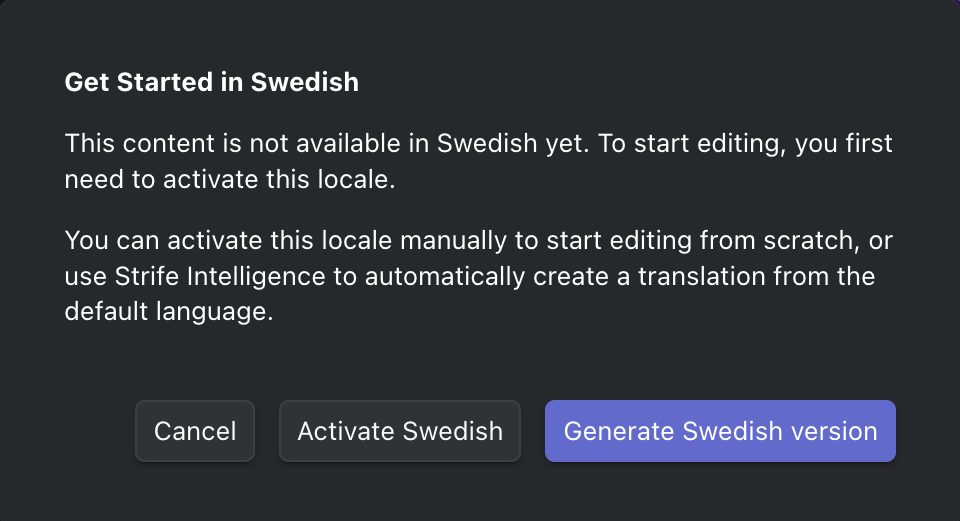
Choose a language that the page doesn't have, and Studio opens **Get Started in** followed by the language's name:
* **Activate** followed by the language's name starts that language version, for you to fill in.
* **Generate** followed by the language's name and **version** lets Strife Intelligence translate the page from the default language. **Translation Progress** shows how far it has come. This choice is there when your team has Strife Intelligence turned on.
* **Cancel** leaves the page as it is.
Adding Swedish to a page that only has English
If the language was removed from the page but is still published, the dialog offers **Restore published version** as well, to bring back what is on the website.
### Shared fields
Fields that the template doesn't translate, such as labels and the published date, are the same in every language, so change them in the default language. In the other languages, some of them can't be changed, and shared fields at the top of the panel show a lock with the note "Editable only in default locale" and the language, such as (en). A shared field inside a tab shows no lock, and changing it there changes every language. Depending on the template, the page's name and slug are either per language or shared.
### Publish one language at a time
When you publish, choose the languages under **Languages to publish** in the publish panel. Only languages with changes can be chosen. **Discard** in the same panel also works on the languages you choose, so you can throw away the changes in one language and keep the others. See [Publish a page](https://strife.app/docs/user-guide/getting-the-basics/publishing-a-page.md).
To take a language off a page, untick it under **Locales**. The language menu marks it red, and its published version stays on the website until you publish: publishing deletes it.
### Languages in the content list
On a team with more than one language, the content list has a language button too, with the tooltip "Show names in" followed by the language. It decides which language's page names the list shows, and searches in. The page menu's **Copy** ▸ has one **Copy URL** for each language, such as **Copy URL · EN**. See [Content list](https://strife.app/docs/user-guide/getting-the-basics/content-list.md).
### Translate several pages at once
With Strife Intelligence turned on, you can translate pages from the content list:
1. Select one or more pages (see [Work with several pages at once](https://strife.app/docs/user-guide/content-list-and-filter/multiple-section.md)).
2. Open the command menu with **Command+K** (Ctrl+K on Windows) and choose **Translate document...**, or **Translate selected documents...** for several.
3. Choose a language, or **All locales**.
Languages that a page already has are skipped. When it's done, Studio shows how many pages were translated, skipped or failed.