Getting the basics
Your first page in Strife: from the content list to Compose, filling in the page beside a live preview, and publishing it. With links to the pages that go deeper.
This chapter covers the parts of Studio you use every day. Start here: the steps below take a page from nothing to published, and link to the pages that go deeper.
Your first page
-
Open the content list. In the navigation on the left, open your team and choose Content (see Find your way around Studio).
-
Compose the page. Click Compose at the top of the list. In the dialog, check the origin and the template at the top, for example Blog › Article, type the page's name, and click Create document (see Compose a page).
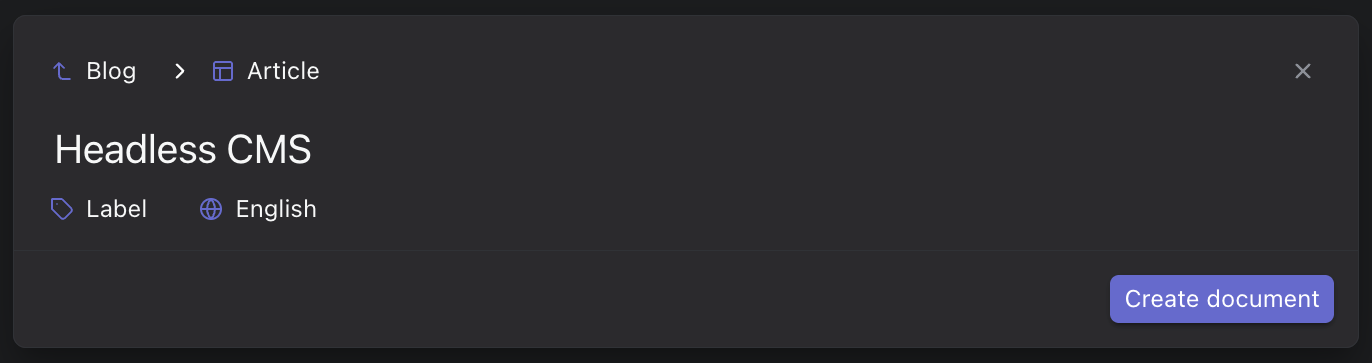
Composing a page
-
Fill it in. The page opens in the editing view. Fill in the fields in the editor panel on the right. The preview in the middle shows the page in several screen sizes and updates as you type (see Canvas and Editor panel). Studio saves your changes as you go, and nothing reaches the website yet.
-
Add sections. If the page is built from chapters, click + next to the chapters field to add one (see Chapters).
-
Publish. Click Publish in the upper right corner, then Publish in the panel that opens, and once more in "Do you want to publish this document?". Studio says "Content published" when the page is live (see Publish a page).
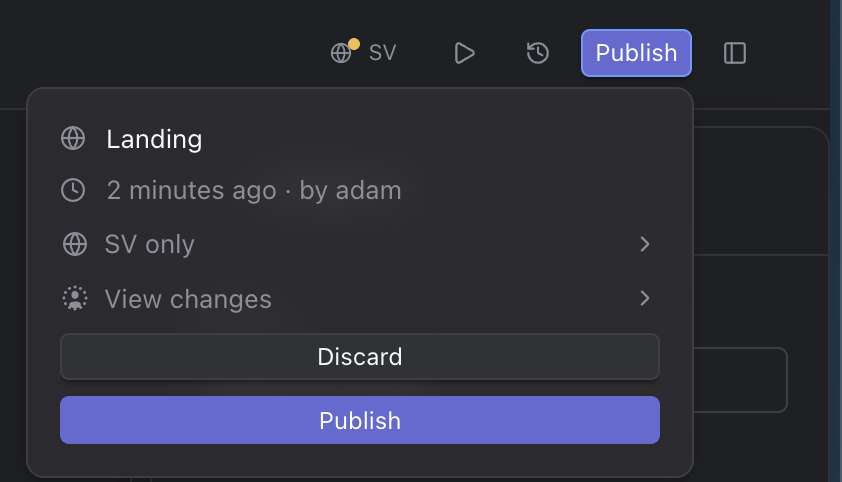
Publishing the page
-
Find it in the list. Back in the content list, the page has a green check: it is published (see Content list).
A contributor can do all of this except publish: an editor or an administrator publishes for them (see Roles and permissions).