Chapters
The sections a page is built from: add them from the chapter library, then edit, copy, rename, reorder or remove them, and reuse content on several pages.
A page is built from chapters: a hero, a block of text, a pricing table, a set of questions and answers. Each chapter is a section of the page with fields of its own. You decide which chapters a page has and in what order they come.
The chapters on a page
The page's chapters are listed in the editor panel, in a field such as Sections, in the order they appear on the page. Each row shows the chapter's name and, below it, what kind of chapter it is.
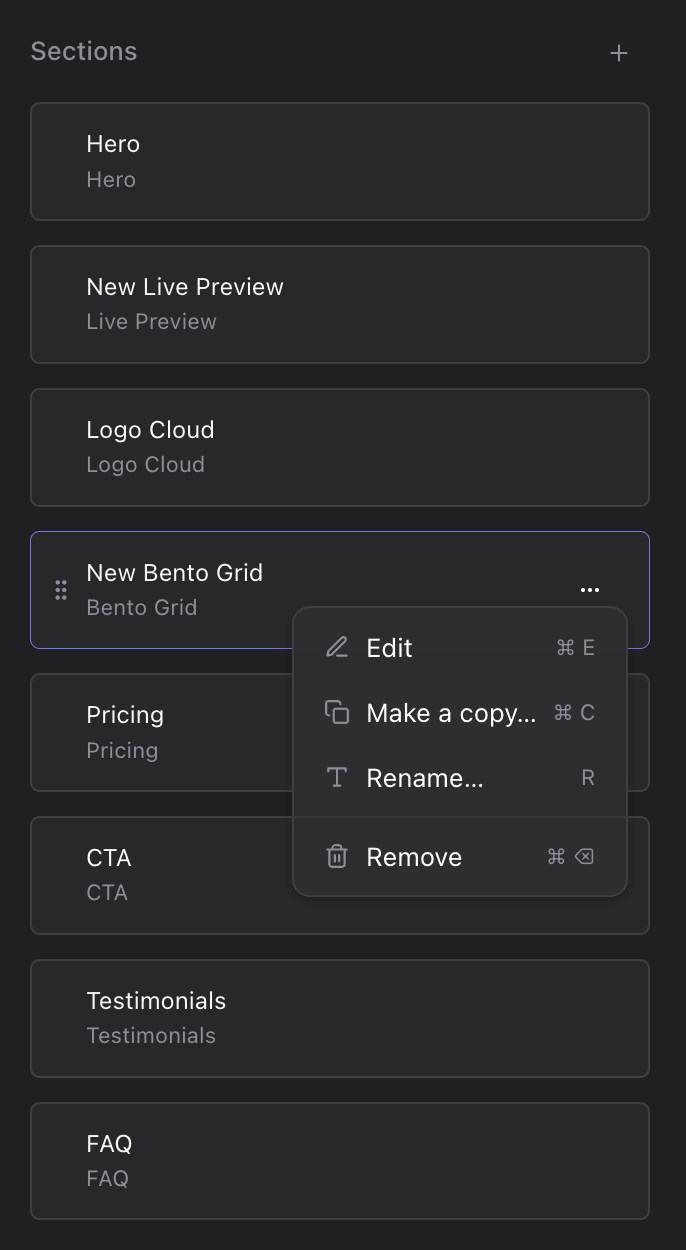
The chapters on a page, with one chapter's menu open
- Edit a chapter by double-clicking it, or with Edit in its … menu. Its fields open in the panel, under "Editing" and the chapter's name. Click the back arrow when you are done.
- Change the order by dragging a chapter up or down. The page shows its chapters in the order of the list.
- Make a copy… adds a copy of the chapter at the end of the list, named "Copy of" and the chapter's name.
- Rename… gives the chapter a new name in the list, so you can tell similar chapters apart.
- Remove takes the chapter off the page, after you confirm "Remove chapter?".
With a chapter selected you can also use the keyboard: Enter or Command+E to edit it, Command+C to make a copy, R to rename it, Command+Backspace to remove it, and A to add a new chapter. On Windows, use Ctrl instead of Command.
Add a chapter
- Click + next to the field with the chapters.
- The chapter library opens, listing the chapters this page accepts. Click the one you want.
- The new chapter is added at the end of the list, named after its kind, such as "New Bento Grid", and opens so you can fill in its fields.
- Drag it to its place in the list.
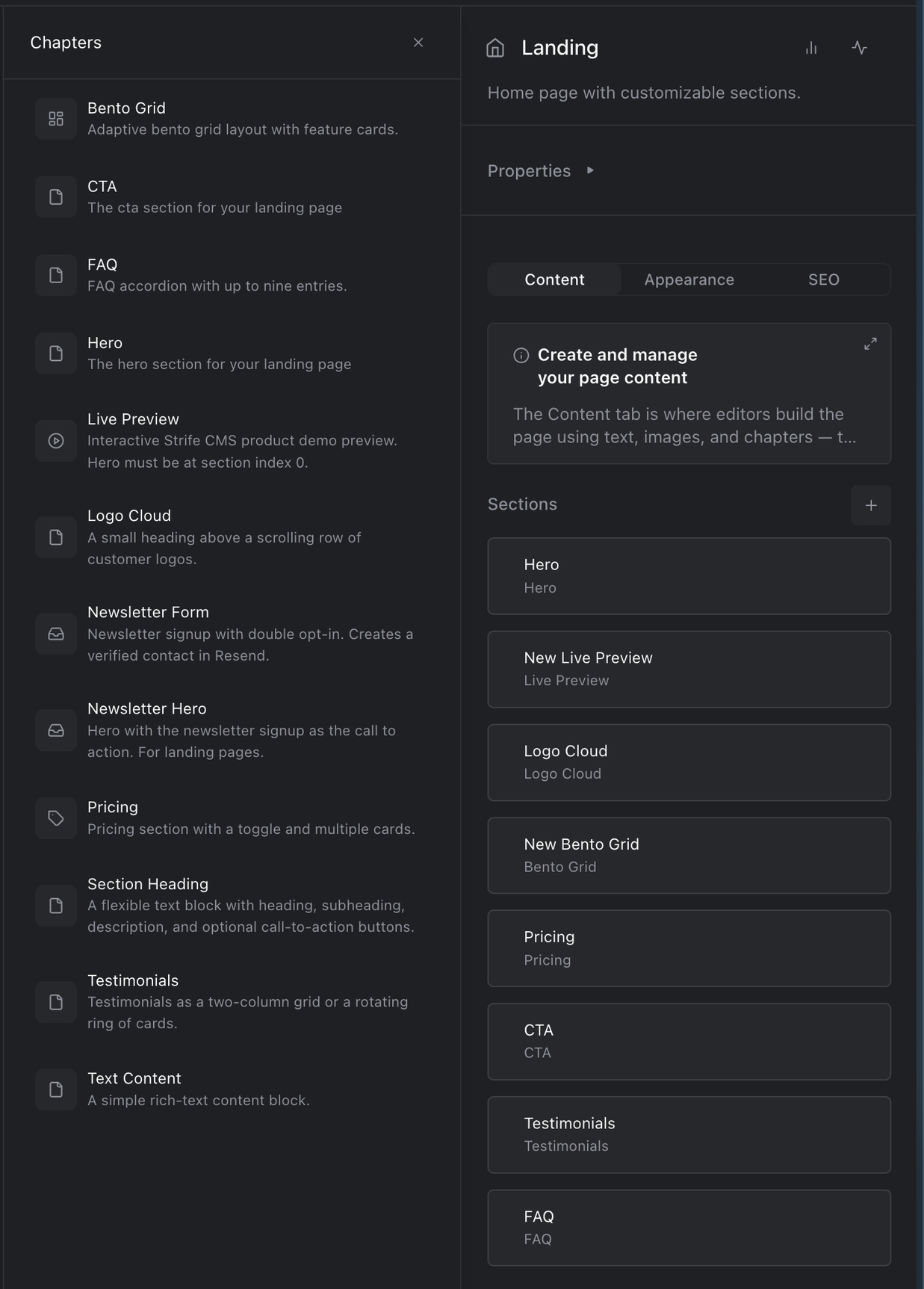
The chapter library
If the field accepts only one kind of chapter, there is no library: the new chapter opens directly. If you go back from a chapter while a required field is empty, Strife asks "Discard content?", and discarding removes the chapter, also one that was already on the page. Some fields have a maximum number of chapters. When it is reached, the + is no longer shown and Make a copy… is unavailable.
Which chapters a page accepts, and the fields in each, is set up in the page's template by your developer or administrator. That is why the library can look different from one kind of page to another. If you need a kind of chapter that isn't there, ask them.
Chapters within chapters
A chapter can have chapters of its own, such as the questions in a set of questions and answers. They work the same way: open the chapter, and its chapters are listed with a + to add more.
Reuse content on several pages
A chapter belongs to its page. Content that several pages should show, such as a contact card or a call to action, can instead be a document of its own that the pages refer to. Change it once, and every page that uses it shows the change.
A field that refers to other documents has a + with two choices:
- Browse… lists the documents you can choose from, under Documents, with a search field. Click one to add it.
- New… lists the templates for new content, under Templates. Choose one, then type a name and click Create document, as when you compose a page. The new document is added to the field.
Each document in the field has a menu with Edit (Command+E), to change the document from the page you are on, and Remove (Command+Backspace). Removing takes the document off this page only: the document itself is kept. Drag the documents to change their order.
When you publish, View changes in the publish panel lists the other documents that go live with the page, such as reused content you changed. See Publish a page.
Find where content is used
Before you change content that several pages use, check where it is used:
- In the content list, click Filter... and choose References.
- Pick the content. The number next to each document is how many documents use it.
- The list now shows the documents that use the content you picked.
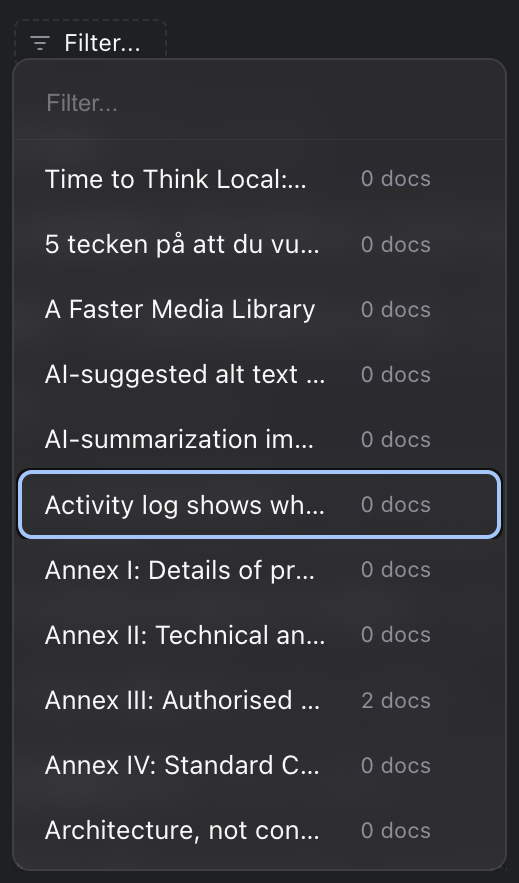
Filter by References
For example, to find every page with the contact card for Alex Example, pick Alex Example under References. More about filters in Filter.
If you archive or delete a document that other documents use, Strife warns you first, and continuing removes it from those documents. See Lifecycle of a page.