Labels
Tag pages with labels to find and filter them, group labels into submenus, and what administrators set up in the team's settings.
Labels tag your pages so you can find them again. Add labels when you compose a page, or later under Properties in the editor panel: click Add label and tick the labels you want. In the content list, you can then filter on one or more labels.
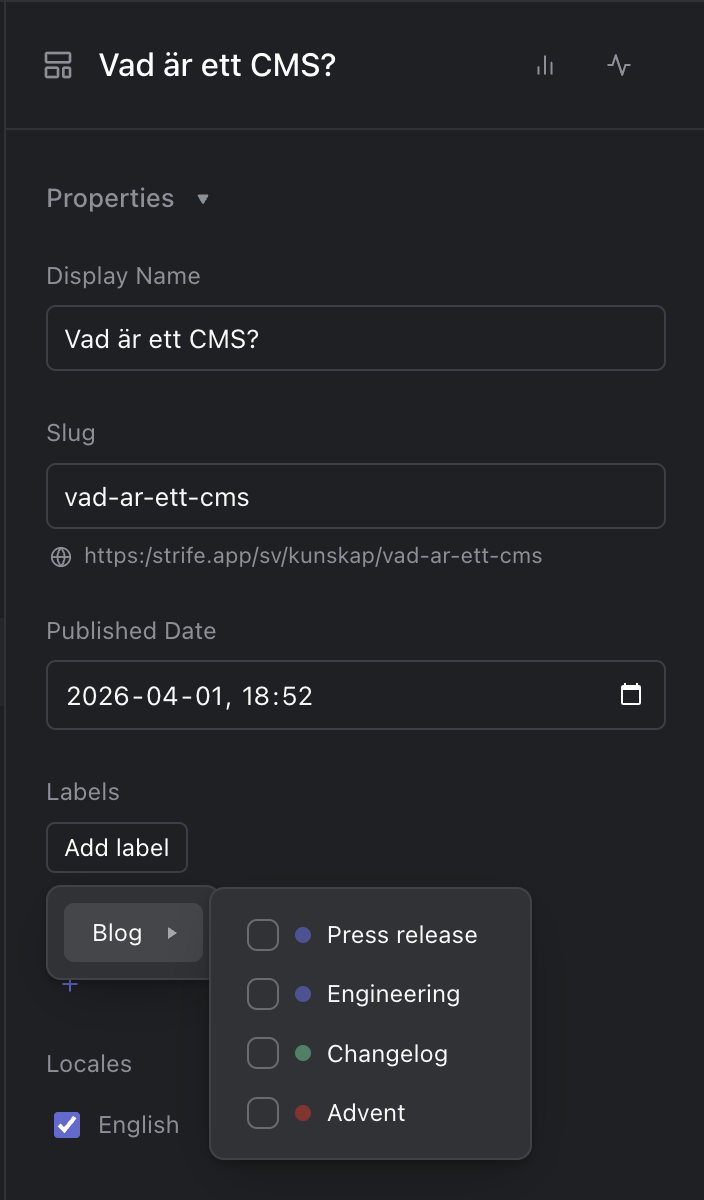
Picking labels, with a label group as a submenu
Labels are shared by all languages of a page. On a team with more than one language you change them in the default language: in a translation, the Labels field is locked, like the page's other shared fields.
Managing labels
Administrators create, rename and delete labels in the team's settings, under Labels. There they also choose where each label can be used: on content, in the media library, or both. Labels for media let you filter the media library too (see Find, sort and filter media).
Label groups
When a team has many labels, an administrator can organize them in label groups, for example a "Categories" group for the labels that say what a page is about, separate from labels used for your workflow. A label belongs to at most one group, and groups are optional: labels without a group work as before.
Groups are managed in the same place as labels, with Create Group. With groups in place, the label picker in the editor panel shows each group as a submenu, and the labels without a group on their own.
A few things are always safe:
- Renaming a group only changes its name.
- Moving a label into a group applies everywhere the label is already used.
- Deleting a group keeps its labels: they lose their group, and stay on every page that has them.