History
Everything a page has been: its draft, the snapshots you shared and every published version, and how to look back at them or restore one.
History is one place to see everything a page has been: what is about to go live, the draft you are editing, every link you have shared for review, and every version you have ever published — newest first, oldest last. From any of those you can look back without touching your current work, and bring an older version back into the draft when you need to.
If you do not see a History icon next to Publish, your team is not on History yet — ask an administrator. If your team has History but not snapshots, the list holds the draft and the published versions only: there are no snapshot rows and no Share in it.
Open History
Click the History icon next to Publish in the upper right corner. A drawer opens listing the page's timeline, most recent first:
- A scheduled publish, if one is pending — shows when it goes live. You can preview it, but not restore it; it is not live yet.
- Current — the draft you are editing, or, if there is no draft, the page as it is live right now. This row offers Share… (create a snapshot from it) and, for a draft, Discard…. It is the only row you cannot restore, since it is where you already are.
- Snapshots: every link you currently have out for review, each with its name, where it was taken from and when it expires. Each has Copy link, Share link on devices that support it, Restore…, and Rename… and Revoke snapshot under More actions.
- Published — the version the site serves right now, and Previous version — every earlier time this page was published, each showing who published it and when. Each offers Share… too (see Share from any row).
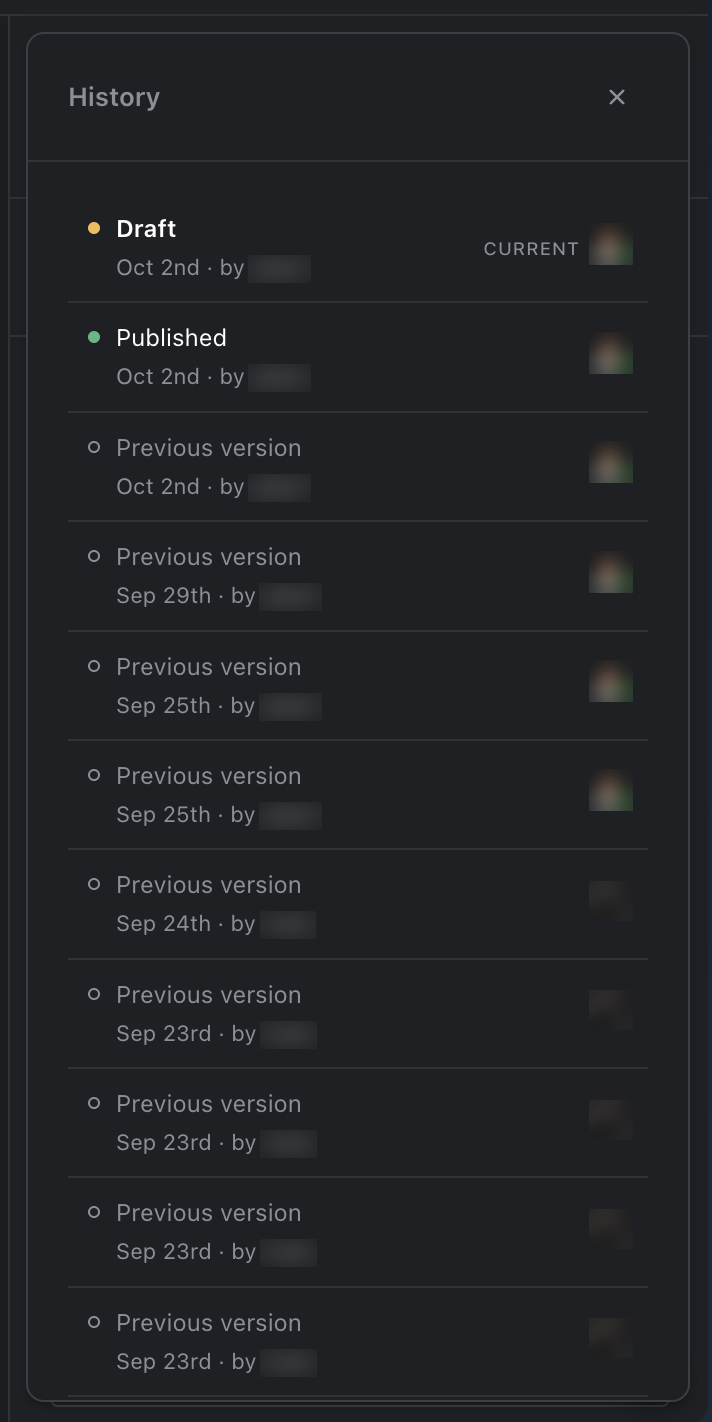
History for a page that has been published several times
When there is no draft, the live page sits at the top of the list marked Current, and there is no Restore… on it: it is what is already live, not a past state to go back to.
Preview a row
Click any row other than Current to see it on the canvas. The form in the editor panel locks with an explanation instead of your usual fields — nothing you type reaches the draft while you are looking at something else — and Publish, Discard and Share… are all disabled for as long as you are previewing. Click Back to draft, or click the Current row, to return.
Previewing a snapshot shows precisely what the person with the link sees. Previewing a scheduled publish or a published version shows that version's content in your normal editing layout instead.
A few things end a preview on their own:
- Switching language or moving to a different page exits preview and returns you to the draft.
- A snapshot that expires or is revoked while you are looking at it exits preview automatically.
Restore a version
Choose Restore… on a row. Strife asks you to confirm and names the version you are about to bring back.
- On a team with more than one language, the confirmation lets you choose which languages to restore, starting with the ones the version you picked actually contains — you can narrow or widen the selection before confirming. On a single-language team there is no picker; the whole draft is replaced.
- Fields that are not per-language — things like a switch or a slug that is the same across all languages — are always restored, whichever languages you pick. The confirmation says so.
- If a publish is scheduled, the confirmation warns you that it is set to go live over whatever you restore, and offers Cancel schedule and restore. Choosing plain Restore keeps the schedule in place — it will still publish at its time and overwrite the languages it carries.
Restoring replaces the draft for the languages you chose; other languages, and any unpublished changes in them, are left exactly as they were. The restored languages are marked as having unpublished changes, the same as if you had just edited them by hand — restoring does not publish anything by itself; use Publish afterwards to make it live.
There is no undo beyond the confirmation dialog, so read the language selection before confirming.
Restoring into a published page's draft needs publish rights. Without them, Restore… is disabled with an explanation; you can still open History and preview every row.
Share from any row
Every Share… in History first asks you to confirm. The dialog names what you are about to share — "Create and share a snapshot of the unpublished draft?", "…of the published version?" or "…of the earlier published version?" — and reminds you what a snapshot is: a frozen copy valid for 7 days that anyone with the link can open in their browser, made to get feedback on your draft, to show the page as it is published right now, or to show how it looked in that version. Cancel creates nothing; Create snapshot goes ahead.
Share… on the Current row creates a snapshot of the draft: after you confirm, Strife saves your pending edits first, freezes the draft and copies the link. Discard… on the same row discards the draft, and on a team with more than one language lets you choose which languages.
Share… on a published version, or on Current when there is no draft and the row is the live page, freezes that version into a snapshot instead. Your draft is not touched: this is how you let someone outside Strife look at an earlier version before you decide to restore it. The new snapshot appears in the list like any other, named for the version's publish date and time, and its row says where it came from — "From draft", "From published page", or "From version …" with the publish date. The person opening the link sees nothing about that; the page looks like any snapshot. Restoring such a snapshot gives the same result as restoring the version itself.
While you are previewing a row, Share… is disabled everywhere. If a version can no longer be shown on the canvas, its Share… is disabled with an explanation.
What leaves the list
- A snapshot leaves once it expires (7 days after it was created) or is revoked.
- Nothing else in History disappears — published versions stay listed indefinitely.
What History needs
History is a Studio feature behind two settings. History enabled gives you the drawer with the draft, the published version and every previous version. Snapshots enabled on top of that adds the snapshot rows and Share on every row. Snapshots on their own, without History, show nothing in the Studio. It is not yet available outside the Studio editor.