Find your way around Studio
A tour of Studio's left navigation: the workspace menu, your account menu, the inbox, your teams with their content, media and views, and the help menu.
The navigation on the left takes you everywhere in Studio: to your teams' content and media, to your inbox, and to your settings.
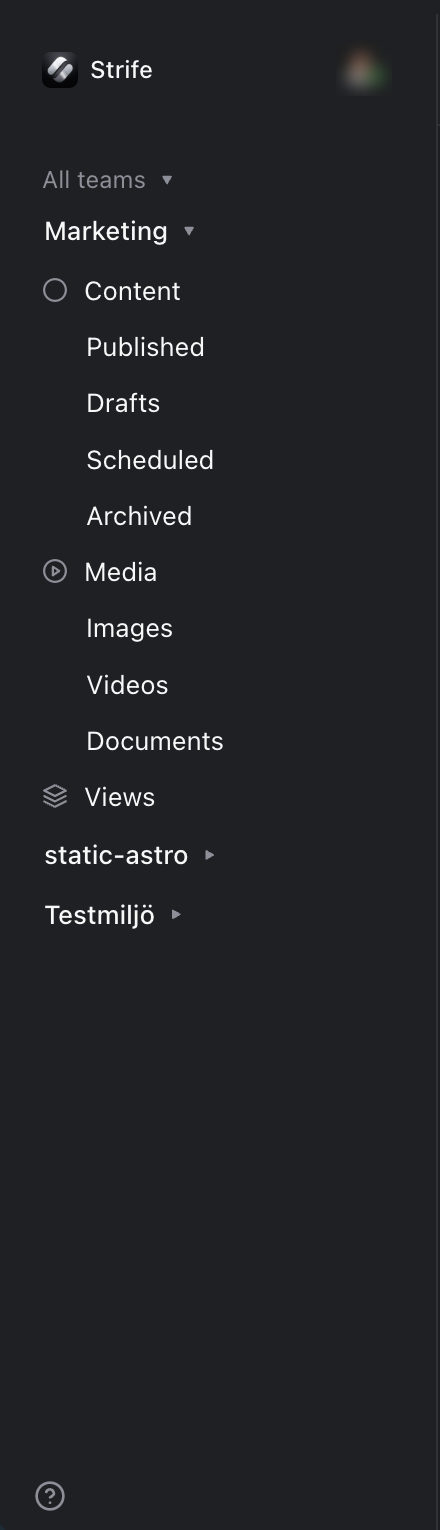
The navigation
The workspace menu
At the top is your workspace's name. Click it to switch to another workspace you belong to (see Navigating to a specific workspace). Administrators also find Workspace settings and Manage members here. Log out (Option+Shift+Q) signs you out.
Your account menu
Your picture opens your account menu, with Changelog for what's new in Strife, Join Slack community and Log out. Administrators also have View profile and Settings.
Inbox
Inbox shows your notifications, with the number you haven't read. It is only there when your team has it turned on.
Your teams
Under All teams are the teams you are a member of. Click a team to open it:
- Content: all the team's pages, with the lists Published, Drafts, Scheduled and Archived under it. See Content list.
- Media: the team's media library, with Images, Videos and Documents under it. See Media library.
- Views: your saved views. See Saving a view.
Help
The question mark at the bottom of the navigation opens Docs (this guide), API Docs (the documentation for developers), Contact us and Join our community.
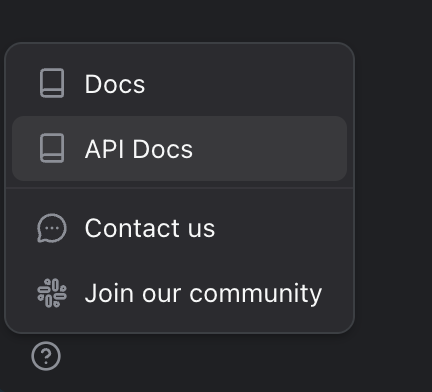
The help menu
Make room
To hide the navigation, click the panel button at the start of the content list's top row, or choose Collapse navigation bar in the command menu. Expand navigation bar brings it back.
Most of what you can click in Studio can also be reached from the keyboard: press Command+K (Ctrl+K on Windows) to open the command menu.