Snapshots
Share a frozen copy of a page through a link, for review by people without a Strife account, and what the snapshot messages mean.
A snapshot is a frozen copy of a page — its unpublished draft, or, from History, an earlier published version or the page as it is live right now — with a link you can send to someone without a Strife account — a client, a colleague in another department, a reviewer. They see the page in your site's normal design, for 7 days. Nothing is published, and the person opening the link sees nothing else that is unpublished.
Before you send the first link, confirm it with your developer. Snapshots only work when your website runs a version of the Strife SDK that has them and the developer has run strife push for your team. Until then, Strife will tell you the snapshot cannot be created (see What the messages mean).
Snapshots live in History: your team needs both History and snapshots enabled. They are listed alongside the draft and published versions there, every Share… asks you to confirm first, and you can also take a snapshot of a published version (see Share from any row).
Create a snapshot
- Open the page and click the History icon next to Publish in the upper right corner.
- Press Share… on the row you want to freeze: the draft, the published version, or a previous version.
- Confirm with Create snapshot. For the draft, Strife saves any edits you have not saved yet first; then it freezes a copy and copies the link to your clipboard — you will see "Link copied".
Every snapshot is named for you — "Snapshot 1", "Snapshot 2", and so on; one taken from a published version is named for that version's publish date and time. Rename it whenever you like (see Rename a snapshot).
The link points at the language you are viewing, but every language the draft had at that moment is included: the person opening it can switch language on your website as usual.
A team member who works on content through an AI assistant connected to Strife's MCP server can also create, list and revoke snapshots from there; the link is the same one the Studio copies.
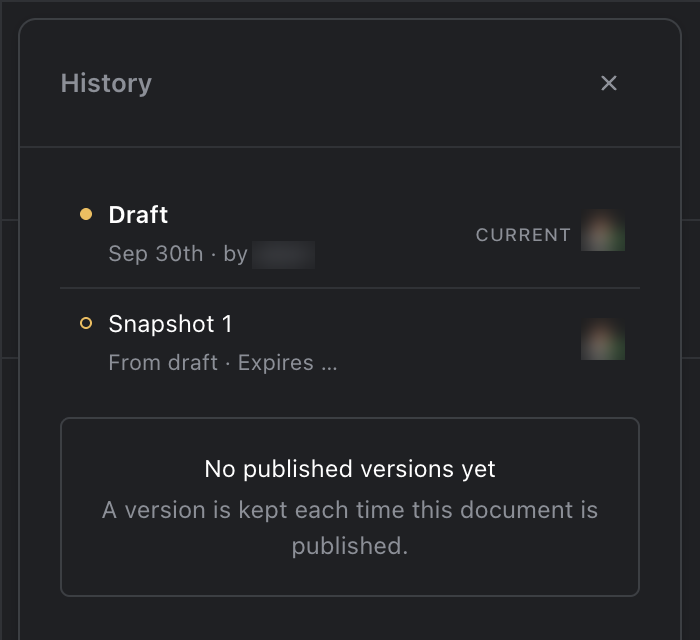
A snapshot in History
Copy and share the link
Each snapshot in the list has a Copy link action. On devices that support it, Share link opens the system share sheet so you can send the link straight to Mail, Messages or another app.
You can have as many snapshots on a page as you need — one per reviewer, or one per version — each with its own name and its own 7-day clock.
The person who opens the link sees the page on your website as it was when you created the snapshot. Your website decides how that looks; usually a bar at the top names the snapshot and says when the link stops working.

A snapshot link opened on the website
View a snapshot
Click a snapshot in the list to show it on the canvas in the middle of the editor. A bar above the canvas shows which one you are looking at and when it expires, with Copy link and Back to draft. What you see is exactly what the person with the link sees.
What happens to a snapshot
- Editing, publishing or discarding the page does not change it. It keeps showing the version it was created from — what the reviewer approved stays what they approved.
- After 7 days the link stops working and the snapshot disappears from the list. If a decision is still pending, create a new one.
- Archiving or deleting the page ends all of its snapshots.
- An expired or revoked link opens your website's ordinary "page not found".
Rename a snapshot
Open More actions on the snapshot and choose Rename…. Type the new name — up to 60 characters — and press Enter. Renaming only changes the label in this list; the version it shows, its address and its 7-day clock all stay exactly as they were.
Revoke a snapshot
To end a snapshot before it expires, open More actions on it and choose Revoke snapshot. The link stops working immediately and the snapshot leaves the list.
Restore the draft from a snapshot
When a reviewer picks an earlier version ("go with version 1"), you do not have to re-edit. Open History, find the snapshot's row and choose Restore…. Strife asks you to confirm and names the snapshot: "Restore '<name>'?"
- On a team with more than one language, choose which languages to restore under Languages to restore. Unpublished changes in the languages you choose are replaced with the snapshot's content, and languages you leave out keep their draft. A language the snapshot has no content for is left unchanged.
- On a team with one language, the whole draft is replaced.
Fields shared across languages are always restored. Restoring publishes nothing: the restored languages get unpublished changes, as if you had edited them, and go live when you publish. The snapshot itself stays as it was. If a publish is scheduled, the confirmation warns you about it (see Restore a version).
Restoring on a published page changes what will be published next, so it needs publish rights. Without them, Restore… is disabled, with the note "Restoring a published page needs publish rights".
What the messages mean
| Message | What it means |
|---|---|
"Make a change first to create a snapshot." | Share… on the draft row freezes the draft, so the page needs unpublished changes. Edit it, or share a published version instead. |
"Switch language, or ask an administrator for a site address." | Your team has no website address configured for the language you are viewing. |
"This site's content index needs updating. Ask your developer to run strife push." | Your website is not ready for snapshots yet. Your developer needs to update the Strife SDK and run strife push. |
"This site's content index is still updating. Try again in a few minutes." | Your developer has just updated the site. Wait a few minutes and try again. |
"Couldn't save your changes. Try again." | Your latest edits could not be saved before the snapshot was created. Nothing was created; try again. |
"This version can't be read any more, so it can't be shared." | You tried to share a published version in History that could not be shown on the canvas either. Pick another version. |
"Snapshot expired" | The snapshot you were viewing on the canvas has expired or been revoked; the canvas returns to the draft. |