Filter
Narrow the content list down with filters, and choose whether pages must match all of them or any.
Narrow the content list down with filters. Click Filter... at the top of the list, choose what to filter on, and set what it should match. You can filter on:
- Author, Content, Collection, Origin, Related and References
- the fields your templates make filterable
- Locale, on a team with more than one language
- Label, when your team has labels
- Status and Published, where the list doesn't already decide them: Status, for example, only in the list of all content
- Analytics, Reactions and Metrics, when your team has them set up
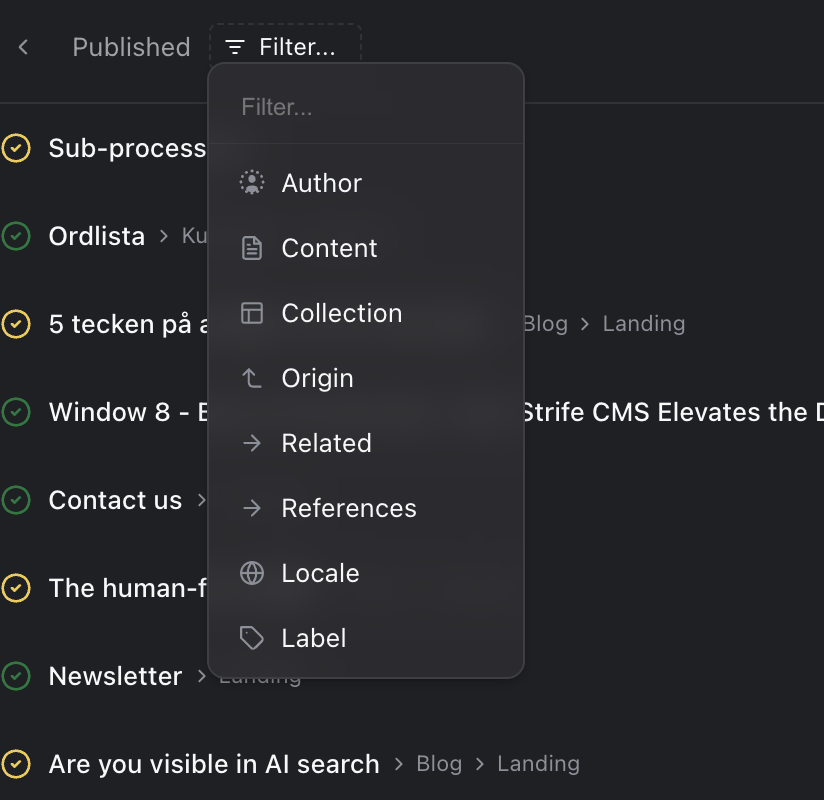
Fields to filter on
To find a page by its name instead, press Command+F (Ctrl+F on Windows); see Search, sort and display.
Match all filters or any
With a filter in place, a row appears above the list: Include items that match, followed by Match all filters. Click it to switch to Match any filter, and back. With Match all filters a page must meet every filter; with Match any filter one is enough.

Filters in the content list
To keep a filter combination for later, click Save on the same row; see Saving a view.