Lifecycle of a page
How a page goes from draft to published and archived, and what Discard, Restore and Delete do.
Draft
A draft is your working copy of a page. Strife saves your changes a moment after you make them: there is no Save button and no "saved" message. If a change can't be saved, you see "Save failed".
Drafts have no undo history. Your latest draft is always in the Drafts list in the left menu, and to bring back a version that was published earlier, use History.

Pre-defined filters
Published
The published version is what your visitors see. Publishing makes the changes in your draft live (see Publish a page).
Discard
Discard in the publish panel throws away the unpublished changes and takes the page back to its published version. On a team with more than one language, it discards the languages chosen in the panel.
A page that has never been published has no published version to go back to, so discarding it removes the page for good.
Archive
To archive a page, open its menu in the content list and choose Archive. Strife asks you to confirm: an archived page is taken off your website and locked for editing until it is restored. Only that page is archived; the pages below it are not.
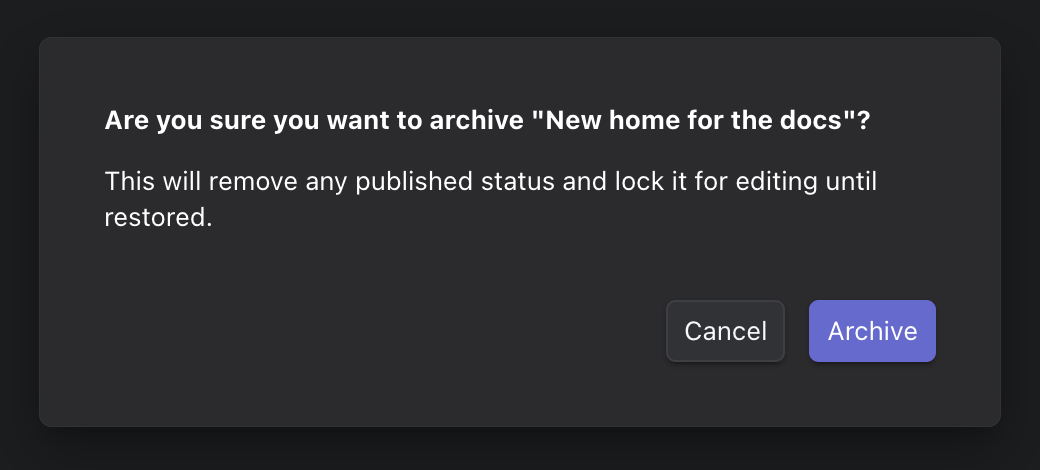
Archiving a page
If other documents use the page, the confirmation says so: archiving or deleting it removes the references to it from those documents.
Restore or delete an archived page
Archived pages are listed under Archived. Their menu has Restore, Make a copy..., Copy and Delete.
- Restore brings the page back unpublished, so you can edit it and publish it again.
- Delete removes the page permanently, for all users. It can't be undone.
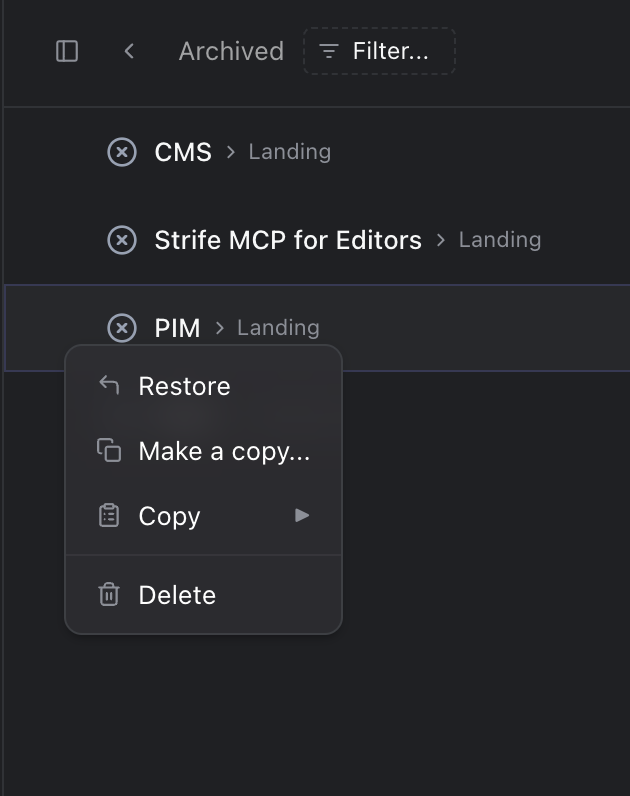
An archived page's menu