Rich text editor
Write and format text in a rich text field: the menu over selected text with its AI tools, and the / menu for headings, lists, pictures, videos and tables.
Text fields with formatting, such as the body text of a page, use the rich text editor. Your website decides how the text looks, so the editor shows its structure: headings, lists, links and so on.
Format text
Select some text, and a menu appears above it:
- AI tools: simplify, summarize or rephrase the text, fix spelling and grammar, make it shorter or longer, change its tone, translate it, or complete the sentence.
- Text style: normal text, or Heading 1, Heading 2 or Heading 3.
- Bold, italic, underline and strikethrough.
- Link: opens Add link. Type a web address, or search for a page or file in Strife. The arrow button next to the address makes the link open in a new tab.
- Quote: turns the paragraph into a quote.
- Lists: a bulleted list, a numbered list or a checklist.
- Details: a section that your readers can open and close.
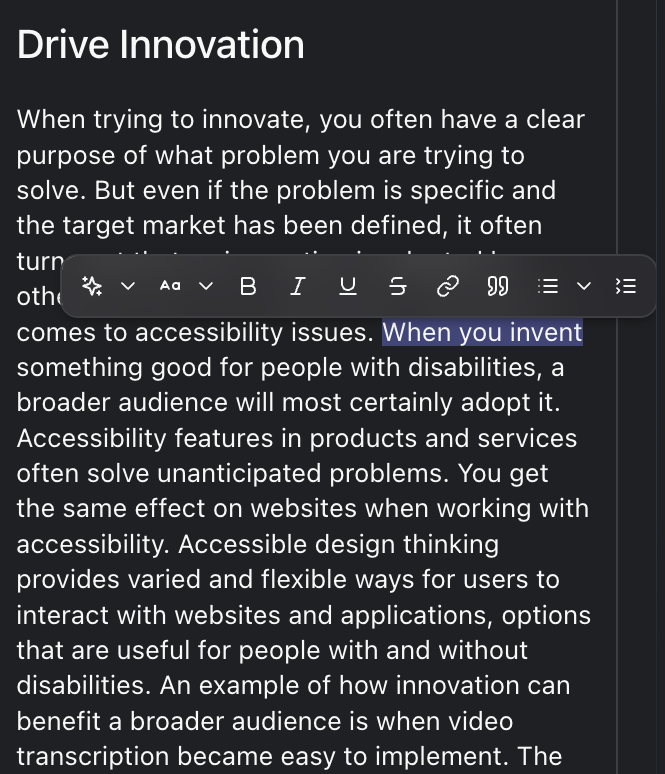
The menu over selected text
Some fields also have a brush button with styles your developer has set up for the text.
Insert headings, lists, pictures and tables
On an empty line, type / to open a menu of things to insert: Heading 1, Heading 2, Heading 3, List, Ordered list, Checklist, Insert image..., Insert video... and Table. Click the one you want, or press Esc to close the menu.
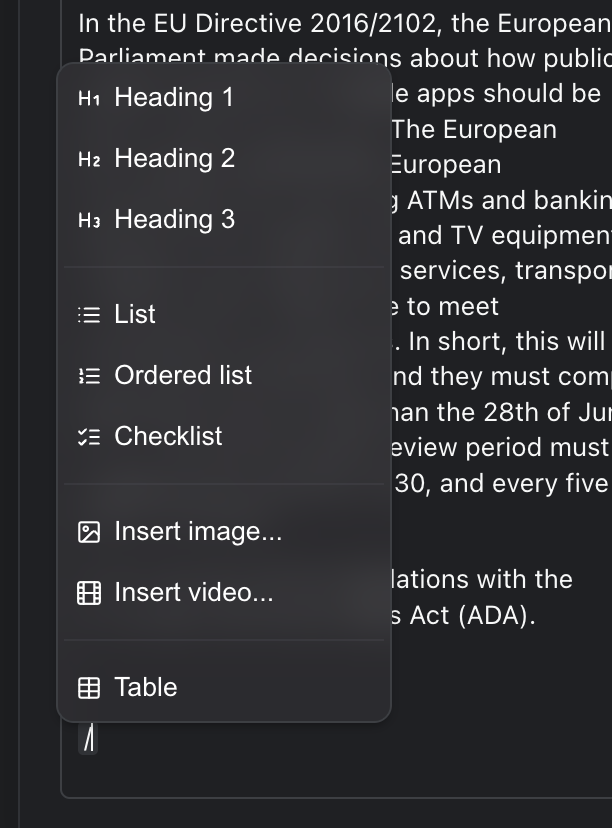
The / menu on an empty line
- Insert image... opens the media library. Pick a picture to put it in the text.
- Insert video... opens the media library's videos. Pick one, and it is shown as a video player in the text.
- Table inserts a table. Click the grip at the start of a row or the top of a column for its menu: insert a row or column before or after, move it, or delete it. A row can also be made a header row with Toggle header.
Your developer can add components of your own to the menu, and can choose which heading levels a field offers.
Paste a video link
Paste a link to a video on YouTube or Vimeo, and Studio asks whether to Embed video, which shows the video in the text, or Keep as link.