Working with pictures
The picture field: choose a picture from the media library, upload or paste one, decide how it fills its frame, and write its alternative text.
A picture field shows the picture in its frame, with buttons to change it and settings below it.
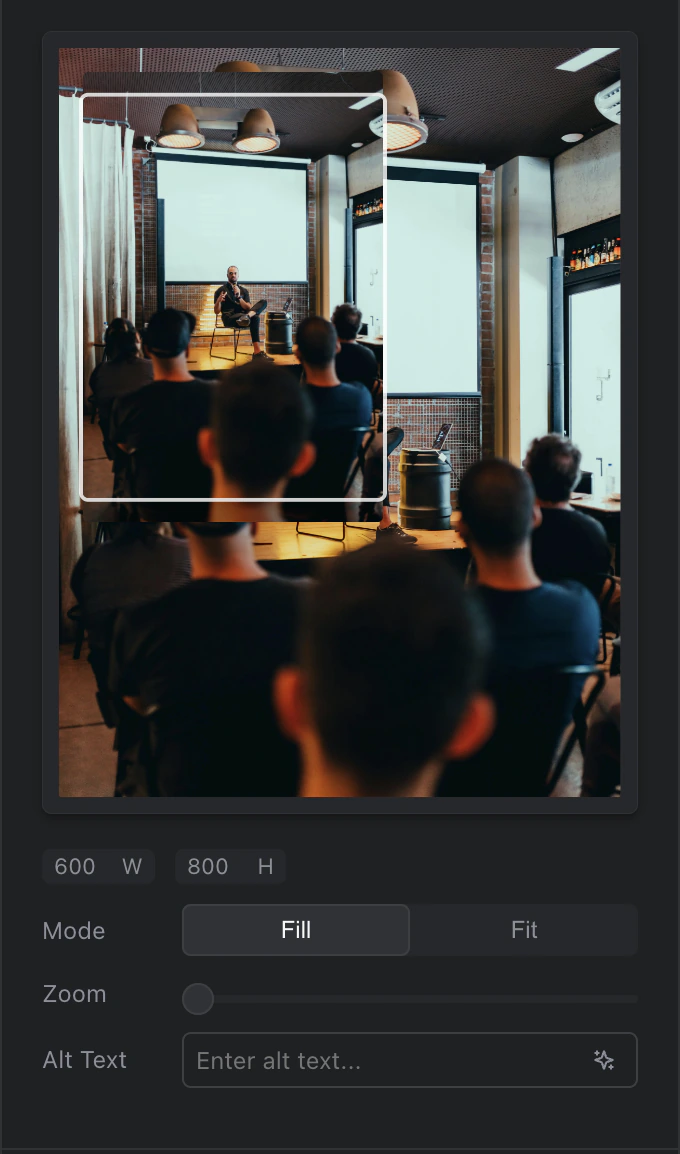
A picture field
Choose a picture
Point at the picture to show its buttons:
- Media library (the picture button): opens the media library, where you can open folders, search and filter. Click a picture to use it.
- Upload (the arrow button): choose a file on your computer.
- Paste (the copy button): paste a picture you have copied, or the address of a picture on the web.
- Remove (the bin): takes the picture out of the field. The picture stays in the media library.
Pictures you upload or paste are saved in the media library, so you can use them again.
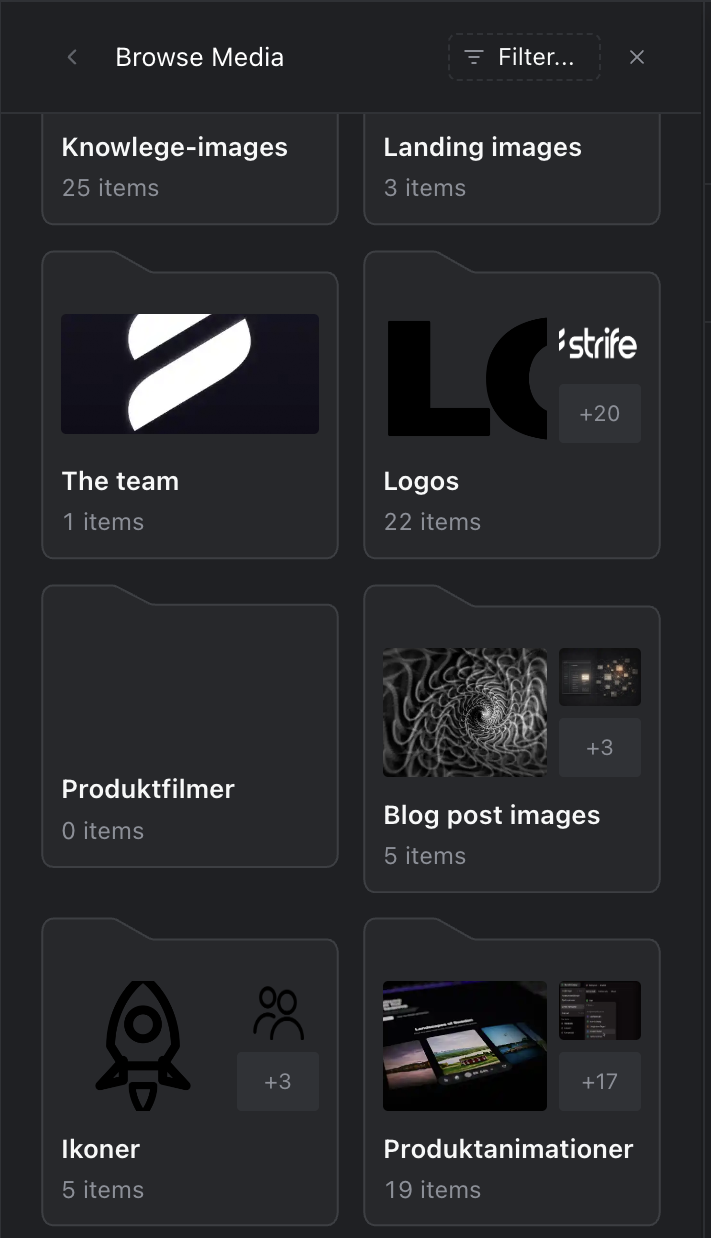
Choosing a picture from the media library
Fit the picture to its frame
W and H show the width and height of the picture's frame, in pixels. The template decides them.
Mode decides how the picture fills its frame:
- Fill covers the whole frame. The parts of the picture outside it are cut off, and you can zoom and move the picture to choose what shows. See Edit pictures.
- Fit shows the whole picture inside the frame. Zooming isn't possible.
Alternative text
Under Alt Text, describe the picture in a short sentence. Screen readers read it to people who can't see the picture, and search engines use it too.
With Strife Intelligence turned on, the AI button in the field, Suggest alt text, writes a suggestion that you can change. If no suggestion comes, you can still write the text yourself.