Editor panel
The editor panel: the page's properties, the fields and tabs from its template, and how your changes are saved.
The editor panel, on the right of the editing view, holds everything you can edit on the page. Its fields come from the page's template, so they differ from one kind of page to another.
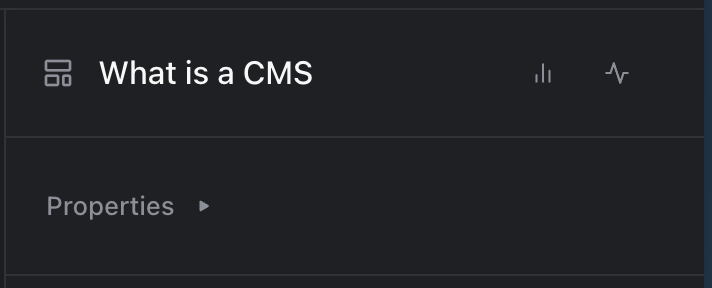
The top of the editor panel
At the top are the template's icon, the page's name, and buttons for Insights and Activity. On a team without language settings, a … menu takes their place, with Content, Metadata, Analytics, Activity and Insights.
Properties
Under Properties are the page's settings. Click the heading to show or hide them.
- Display Name: the page's name in Studio.
- Slug: the last part of the page's address. The full address is shown below the field.
- Published Date: the page's publishing date.
- Labels: see Labels.
- Related: other documents the page is related to.
- Locales: the languages the page has. The default language can't be turned off.
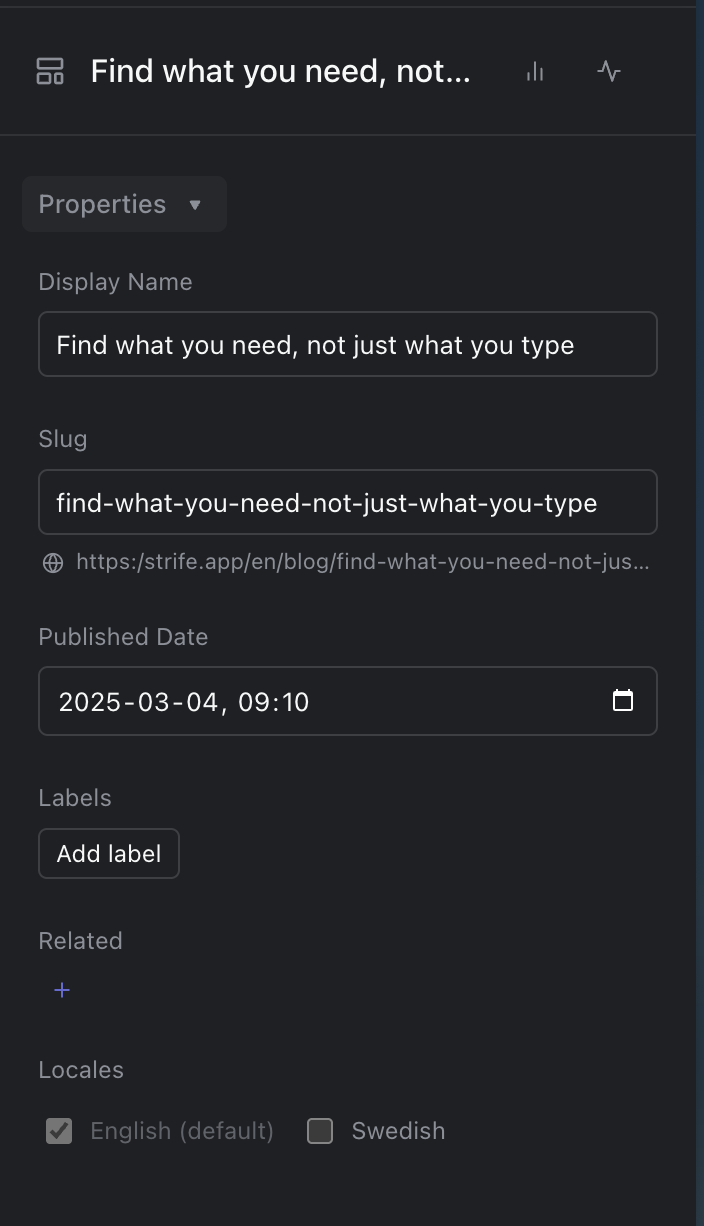
Properties
The page's fields
Below the properties are the fields from the page's template, often grouped in tabs such as Content, Appearance and SEO. A box at the top of a tab may explain what it is for. The page's sections, its chapters, are listed with a + to add more (see Chapters). Fields describes each kind of field.
Saving
Strife saves your changes a moment after you make them; there is no Save button. Nothing is published until you click Publish (see Publish a page).
Editing another language
On a team with more than one language, switch language with the language button in the bar along the top. Change fields that all languages share in the default language: a change in another language changes every language. Shared fields at the top of the panel show a lock in the other languages, with the note "Editable only in default locale" and the language, such as (en). Fields inside tabs and chapters show no lock. See Languages and translation.
To hide the panel and see more of the canvas, click the panel button in the upper right corner, or press Command+I (Ctrl+I on Windows). To make it wider or narrower, drag its left edge. Studio remembers the width.