Uploading media files
Upload images, videos and documents to the media library from the menu, by dragging or by pasting.
Files you upload go into the folder you have open, or into the library's root.
- From the menu. Open ⋮ at the top of the library and choose File upload, or press Command+Shift+U (Ctrl+Shift+U on Windows). Pick one or more files on your computer.
- Drag and drop. Drag files from your computer onto the library.
- Paste. Copy a file, for example an image, and paste it into the library.
- In an empty library or folder, click Upload files.
While a file uploads, its thumbnail shows "Preparing…" and then "Generating thumbnails…".
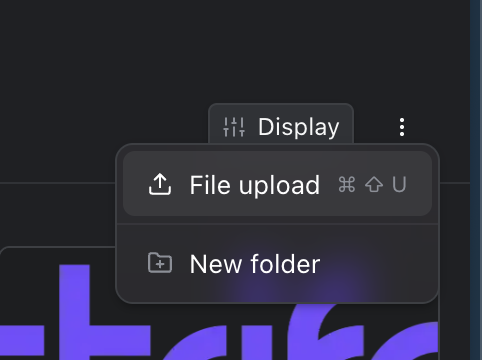
Upload files or create a folder
The same ⋮ menu has New folder (see Folders).
Note:
Strife checks every file as it uploads. A file type it doesn't accept, or an image with too high a resolution, is refused with a message saying why.