Activity
The activity log: who edited, published or restored a page and when, comments and mentions, and reactions and KPI updates.
The activity log shows what has happened to a page: edits, publishing, restored versions, comments, and the reactions your website collects.
Open the activity log
In the editing view, click the Activity button at the top of the editor panel. On a team without language settings, open the panel's … menu and choose Activity.
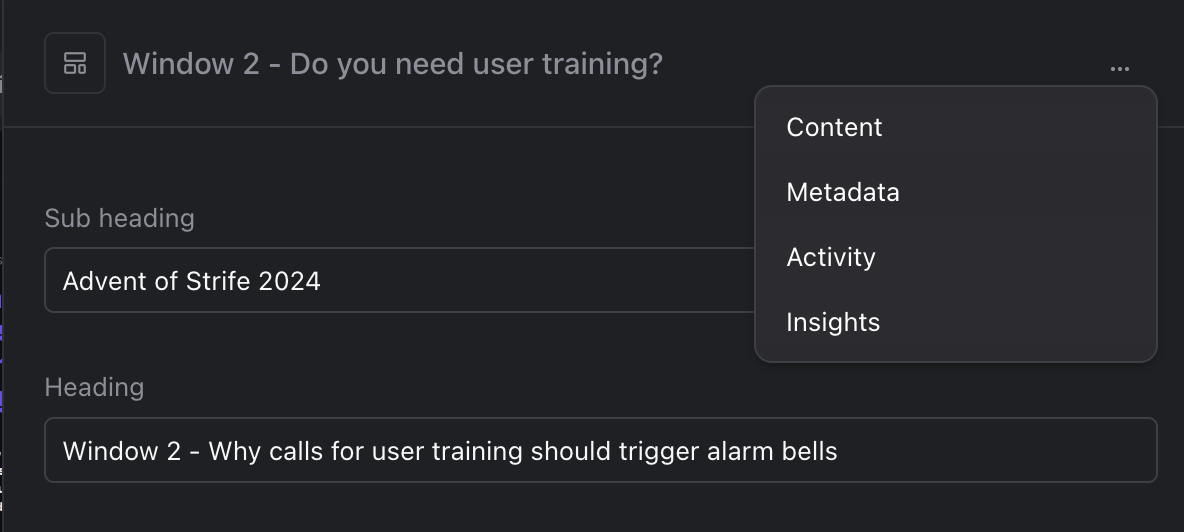
The panel's menu on a team without language settings
What the log shows
- Edits: who edited the page, and how many fields changed. Expand the entry to see the language and which fields, by their names in the template. A change inside a chapter shows the chapter's name and the field, for example "Intro → Text". A field the template doesn't name shows its technical path, such as
sections.3.description. Point at the list to see the technical paths of all fields. - Publishing: who published, and in how many languages. Expand the entry to see which.
- Restored versions: when someone restored a snapshot or an earlier published version (see History).
- Comments: write in Add a comment... and click Comment. Type @ to mention a colleague.
- Reactions and KPI updates: reactions from your website's visitors and changes in the page's figures, when your team collects them.
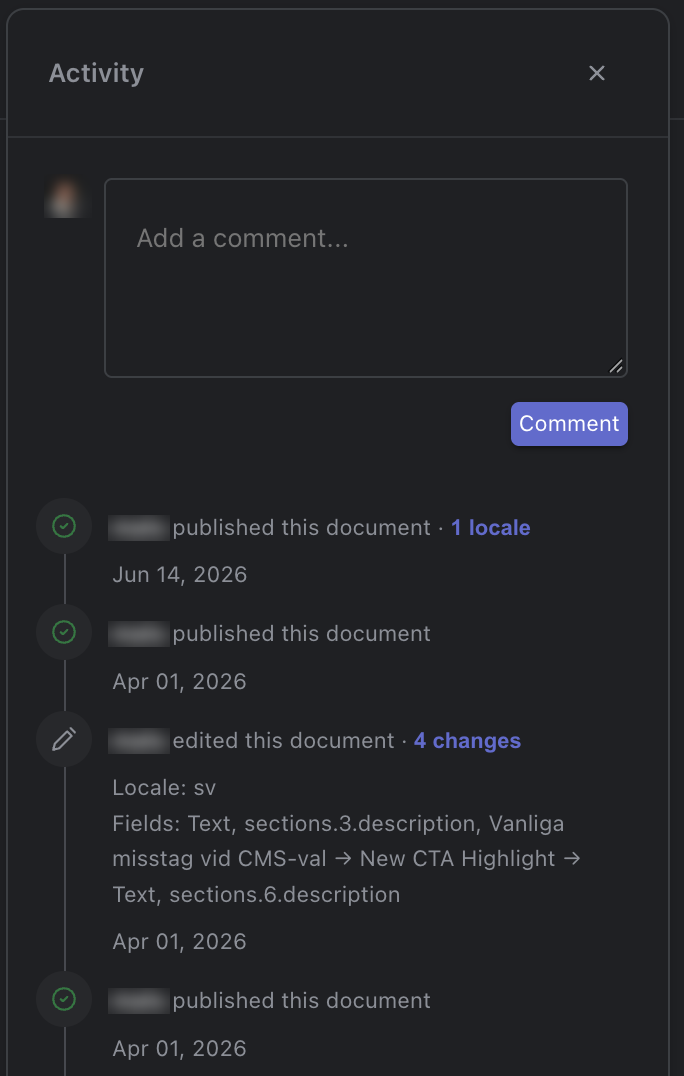
The activity log